Tech Declutter Checklist: Organize Files, Devices & Passwords
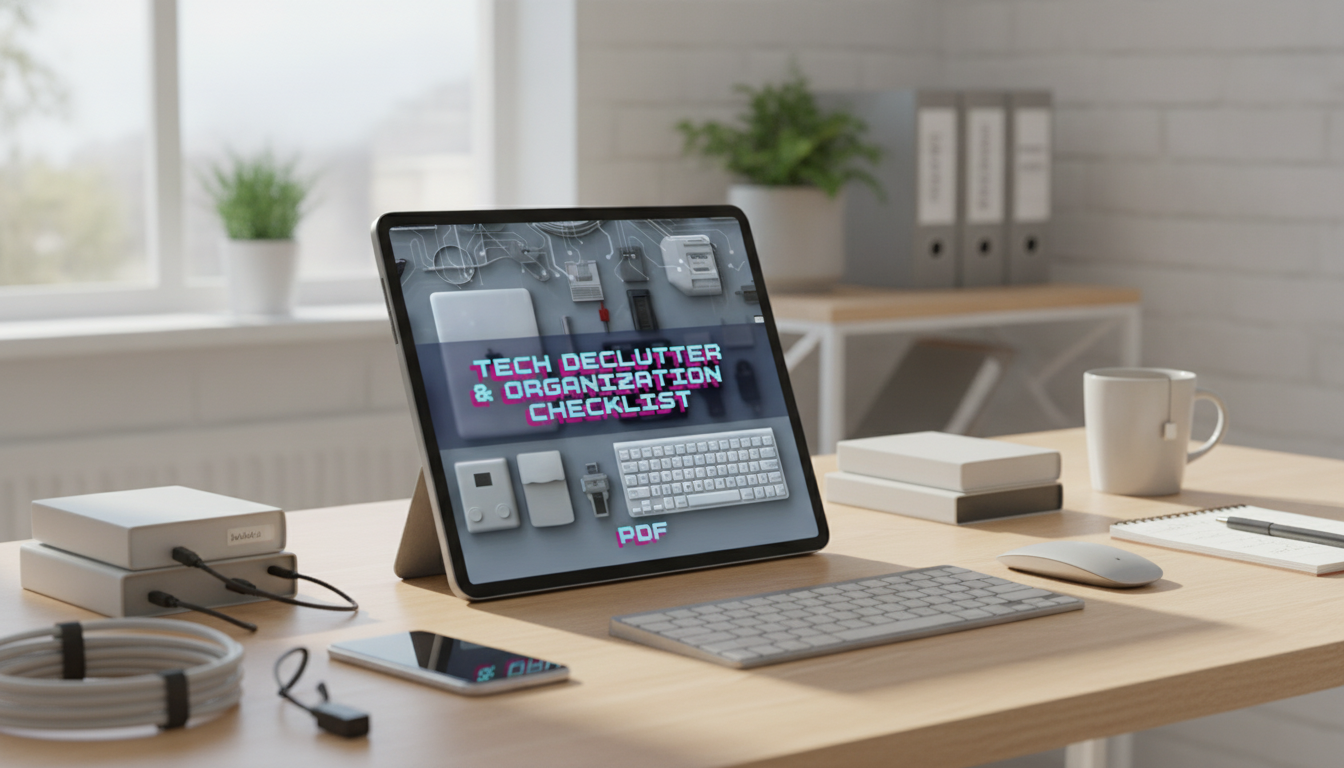
Tech Declutter & Organization Checklist: A Simple System for Devices, Files, and Passwords
A cluttered digital life shows up as full storage, duplicate files, confusing folders, and forgotten logins. A structured checklist makes the cleanup faster and easier to maintain. Use the sections below as a step-by-step plan to declutter devices, organize files, tighten account security, and set up routines that keep everything tidy.
Start With a Quick Tech Inventory
Before deleting anything, take five minutes to map what you actually own and where your data lives. This prevents “I cleaned my laptop but my phone is still full” whiplash—and it helps you focus on the biggest pain points first.
- List every device that stores personal data: phone, tablet, laptop/desktop, external drives, smart TV, and any shared family devices.
- Identify “high-priority” areas that cause the most friction: low storage, slow performance, messy downloads, or account lockouts.
- Choose a single “home base” for your organizing session: a notes app, a printable checklist, or a dedicated digital workbook.
- Set a realistic time block: 30–60 minutes for a first pass, then shorter maintenance sessions.
Tech declutter pass: what to check first
| Area | Common clutter | Best first action | Time estimate |
|---|---|---|---|
| Phone | Unused apps, huge photos/videos, bloated messages | Delete apps, clear large media, review storage | 20–45 min |
| Computer | Downloads pile, duplicate documents, old installers | Sort Downloads, remove duplicates, uninstall unused apps | 30–60 min |
| Cloud storage | Multiple versions, shared folders, old backups | Consolidate folders, delete old copies, set naming rules | 20–45 min |
| Accounts & passwords | Reused passwords, unknown logins, outdated recovery info | Password manager + update recovery email/phone | 30–60 min |
Declutter Devices Without Breaking Anything
The safest approach is “protect first, delete second.” You’ll move faster when you’re not second-guessing whether a folder contains something important.
- Back up before major deletions: confirm photos, documents, and notes are safely stored in one trusted location.
- Uninstall unused apps and remove browser extensions that are no longer needed.
- Clear “hidden” space hogs: downloads, offline media, cached files, and old device backups.
- Update operating system and key apps after decluttering to keep performance stable and security current.
- Create a simple rule: if it hasn’t been used in 90 days and isn’t essential, remove it (or archive it once).
For a smoother first pass, start with “low-risk” deletions: duplicate installers, old .zip files, and obvious junk from the Downloads folder. Save deeper cuts (like reorganizing your entire photo library) for a second session.
Organize Files With a Folder System That Stays Simple
File organization doesn’t need a complex taxonomy to work. It needs consistency—so future-you can predict where things belong.
- Choose one primary file home: computer Documents folder or a single cloud drive (avoid splitting across multiple “main” locations).
- Create a top-level structure based on real life categories (examples: Personal, Work/School, Finances, Home, Photos, Projects, Archive).
- Use consistent naming: YYYY-MM-DD at the start for dated files, and clear labels like “Invoice”, “Contract”, or “Receipt”.
- Limit folder nesting to 2–3 levels to prevent “lost file” syndrome.
- Set a default landing spot: make Downloads a temporary holding area that gets cleared weekly.
One practical trick: make an “Inbox” folder inside your main drive for anything you can’t categorize quickly. Then schedule a short weekly sweep to file those items properly.
Photos and Media: Keep the Memories, Drop the Noise
Photos are usually the #1 storage culprit, and they’re also emotionally harder to clean. Make it easy by starting with the obvious wins.
- Delete obvious clutter first: screenshots, blurry shots, duplicates, and accidental screen recordings.
- Create “event albums” or year-based folders to reduce scrolling and searching.
- Move large videos to an archive folder if they are rarely accessed, especially if they inflate phone storage.
- Turn on smart backup and confirm it’s actually syncing at full quality where desired.
- Pick one photo library as the source of truth to avoid re-downloading and re-uploading across devices.
After the first cleanup, make “screenshots” a recurring micro-task. Deleting 30 screenshots weekly is far easier than deleting 3,000 later.
Passwords and Accounts: Reduce Risk While Reducing Stress
For password guidance and authentication best practices, review NIST Digital Identity Guidelines and CISA’s Secure Our World tips. For broader account and personal information protection, the FTC’s privacy and security guidance is a solid reference.
Create Maintenance Routines That Prevent Re-Cluttering
Use a Guided Checklist to Make the Process Faster
If you want a ready-to-follow system, the Tech Declutter & Organization Checklist (digital download) is designed to guide the full reset—devices, files, cloud, and passwords—without guesswork. For another simple routine-builder around the home, pair it with the Eco-Friendly Laundry Day Checklist (digital download) to keep recurring tasks from piling up.
FAQ
What should be backed up before deleting files and apps?
Back up photos/videos, documents, notes, contacts, and any 2FA recovery codes or backup codes. Confirm the backup by signing in on another device or checking you can access a restore option, and keep one primary backup destination plus a secondary copy for truly critical items.
How long does a tech declutter usually take?
A first pass often takes 20–45 minutes for a phone, 30–60 minutes for a computer, 20–45 minutes for cloud storage, and 30–60 minutes for passwords/accounts. After that, short 10–20 minute maintenance sessions weekly or monthly keep things from building back up.
Is a password manager necessary if passwords are written down somewhere safe?
A password manager makes it much easier to use unique, strong passwords for every site and to update them quickly when needed, often with autofill and security alerts. Written passwords can be hard to maintain and may be exposed or misplaced, so pairing a manager with multi-factor authentication and updated recovery options is typically safer and simpler.
















Leave a comment